Approving Worked Shifts
A worked shift records an employee's clock-in and clock-out times. It's captured via a kiosk or the self-service mobile app, or added manually by an Admin. Each worked shift has an approval status – "In progress" , "Pending", "Approved", or "Discarded" – and must be approved before its hours can be synced to Payroll.
You can approve, mark as pending, and discard worked shifts one at a time, or in bulk across several employees at once.
👉 How-To Guides
Before you start
You'll need to know:
- Whether you want to action a single worked shift or several at once; and
- Which screen you're working from – Attendance, Daily Worked Shifts, or Worked Shifts – since each groups the same shifts differently.
On Attendance, each row is an employee, so even one selected row can include shifts with different statuses. On Daily Worked Shifts and an employee's Worked Shifts screen, each row is a single shift, so statuses only mix when you select more than one.
How to approve worked shifts
- Go to Clocking > Attendance (or Daily Attendance , or open the Worked Shifts screen for an employee ).
- Select the Pay Frequency tab the shifts belong to (or All, on Daily Worked Shifts), and click the arrows next to the date to move to a different pay period or day, if needed.
- Check the boxes next to the worked shifts you want to approve, or check the box at the top of the table to select every row.
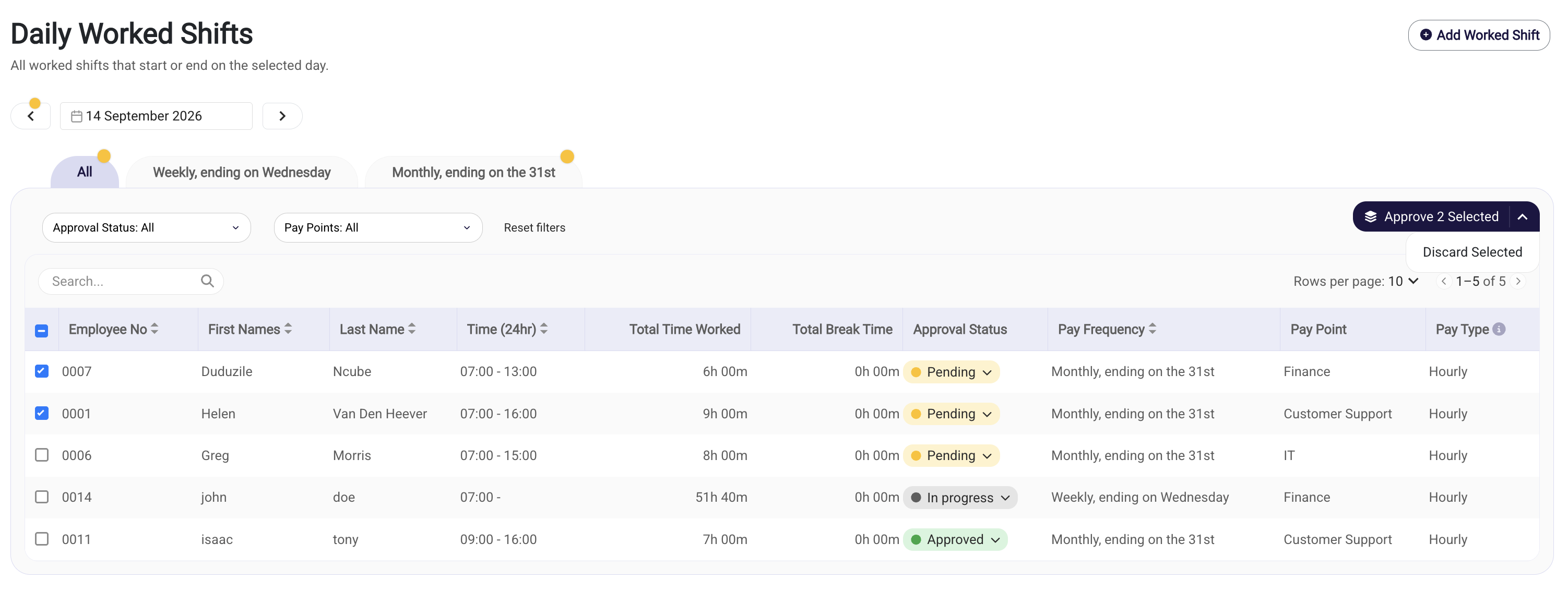
- Click Approve x Selected, where x is the number of rows you've selected (employees on Attendance, shifts on Daily Worked Shifts).
- Click Approve on the pop-up to confirm, or click Cancel to close it without approving.
This changes any "Pending" shifts to "Approved". "In progress" shifts stay "In progress". A message then confirms how many shifts were approved, and lists any that were skipped.
Discarded shifts when approving
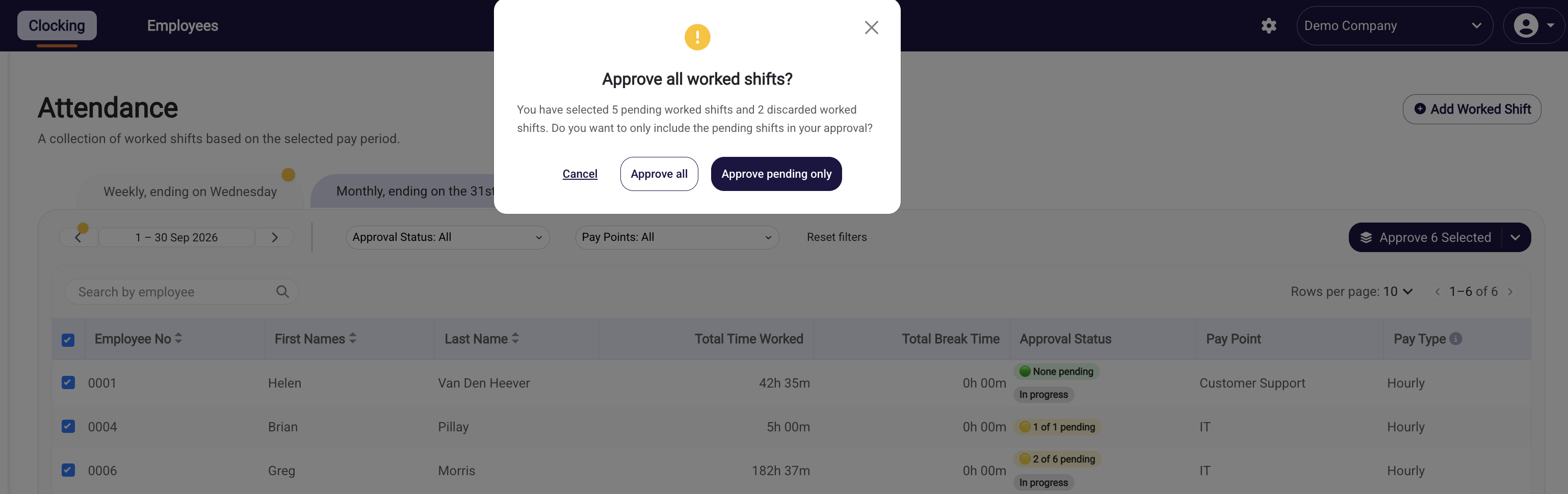
If your selection includes "Discarded" shifts, a pop-up shows the pending/discarded counts and offers Approve all (approve everything) or Approve pending only (skip the discarded ones) – or just Approve if only discarded shifts are selected. Cancel closes without approving anything.
Discarded shifts that were "In progress" when discarded, or that overlap another shift, are skipped automatically and stay "Discarded".
How to mark worked shifts as pending
- Go to Clocking > Attendance (or Daily Attendance, or open the Worked Shifts screen for an employee).
- Select the Pay Frequency tab the shifts belong to (or All, on Daily Worked Shifts), and click the arrows next to the date to move to a different pay period or day, if needed.
- Check the boxes next to the worked shifts you want to mark as pending, or check the box at the top of the table to select every row.
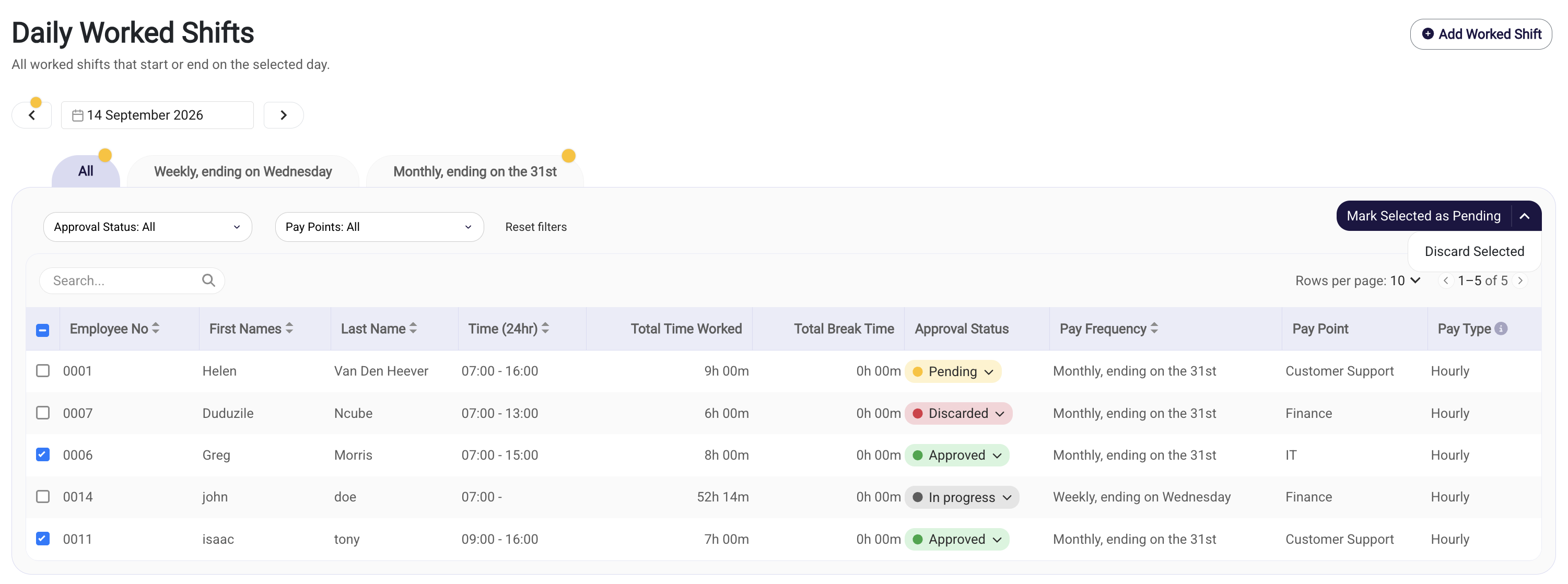
- Click Mark Selected as Pending.
- Click Mark on the pop-up to confirm, or click Cancel to close it without changing anything.
This changes any "Approved" shifts to "Pending". A message then confirms how many shifts were marked as pending, and lists any that were skipped.
Discarded shifts when marking as pending
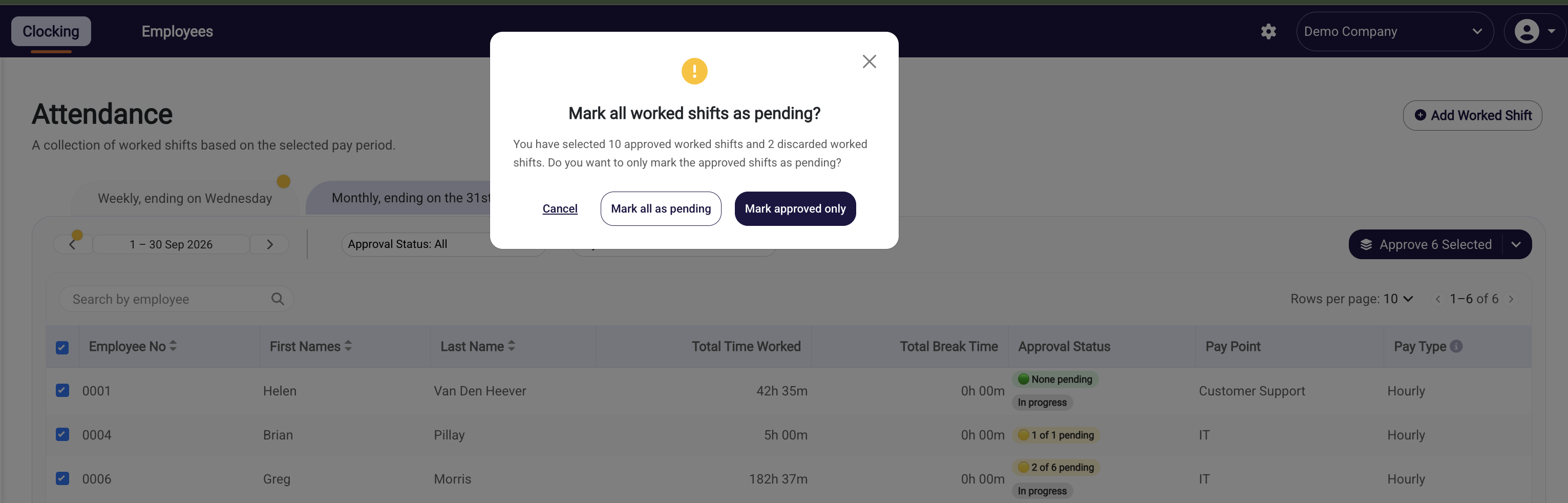
If your selection includes "Discarded" shifts, a pop-up shows the approved/discarded counts and offers Mark all as pending (change everything) or Mark approved only (skip the discarded ones) – or just Mark if only discarded shifts are selected. Cancel closes without changing anything.
Discarded shifts that were "In progress" when discarded, or that overlap another shift, are skipped automatically and stay "Discarded".
How to discard worked shifts
- Go to Clocking > Attendance (or Daily Attendance, or open the Worked Shifts screen for an employee).
- Select the Pay Frequency tab the shifts belong to (or All, on Daily Worked Shifts), and click the arrows next to the date to move to a different pay period or day, if needed.
- Check the boxes next to the worked shifts you want to discard, or check the box at the top of the table to select every row.
- Click Discard Selected – if it's already showing as the main action, click it directly; otherwise, click the drop-down arrow next to Approve x Selected or Mark Selected as Pending and select it from there.
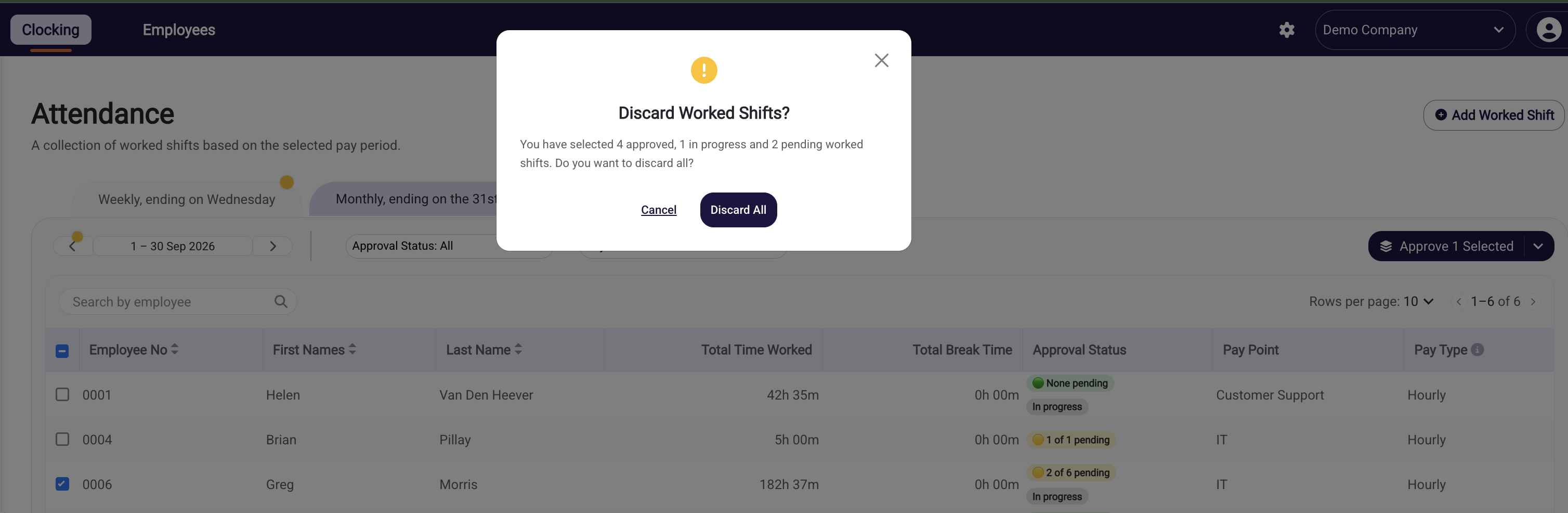
- Confirm the number of "Approved", "In progress", and "Pending" shifts you've selected on the pop-up. Shifts that are already "Discarded" aren't counted.
- Click Discard (or Discard All if your selection includes more than one shift) to confirm, or click Cancel to close the pop-up without discarding.
A message then confirms how many shifts were discarded.
How to change a single worked shift's status
- Go to Clocking > Daily Attendance, or open the Worked Shifts screen for an employee.
- Select the Pay Frequency tab the shift belongs to (or All, on Daily Worked Shifts), and click the arrows next to the date to move to a different pay period or day, if needed.
- Click the shift's Approval Status, and select the new status.
The change applies immediately, with no checkboxes or confirmation pop-up.
Alternatively, click anywhere else on the shift's row to open the View Worked Shift screen, and click Approve Shift, Mark Shift as pending, or Undo Discard, depending on the shift's current status.
📌 Quick References
Approval fields
| Field | Description | Notes |
|---|---|---|
| Approval Status | Current state of a worked shift in the approval workflow. | Options: • In progress • Pending • Approved • Discarded |
| Approver | User who approved the shift. | Only shown on the Worked Shifts and View Worked Shift screens, and only while the shift is "Approved" – blank for every other status. |
| Approval Status filter | Filters table to show only worked shifts with selected status(es). | Found above the table on the Attendance, Daily Worked Shifts, and Worked Shifts screens. On Attendance, filters employees instead, with options: • None pending • Pending • In progress |
🔍 FAQs
Can I approve a worked shift that's still in progress?
No. A shift stays "In progress" until the employee clocks out. Once it's complete, it moves to "Pending" and can be approved.
What happens to discarded shifts when I use Approve x Selected or Mark Selected as Pending?
If your selection also includes "Pending" (or "Approved") shifts, you'll be asked to choose. You can either skip the discarded shifts and leave them as "Discarded", or include them in the bulk action. If only discarded shifts are selected, there's no choice – confirming the pop-up applies the action to all of them.
Can I undo an accidental approval or discard?
Yes. Click the shift's Approval Status, or open the View Worked Shift screen. Undoing a discard always restores the shift to "Pending" (or "In progress", if that's what it was before) – never back to "Approved", even if it was approved before being discarded.
Can I edit an approved shift?
Not directly. You can only edit "Pending" and "In progress" shifts. Mark the shift as pending first, make your changes, then approve it again.
Does discarding a worked shift delete it?
No. The shift is excluded from the employee's total time worked, but it isn't permanently deleted – you can restore it from its Approval Status, or by clicking Undo Discard on the View Worked Shift screen.